Make Claude better at your work, in about five minutes
If you use Claude on Pro or Max for work and you’ve ever wished it just knew what was going on with your projects, your customers, your inbox, your shared docs, this is the upgrade.
You connect Claude to your Gmail and Google Drive (read-only), then install one or two plugins for the kind of work you do. After that, when you ask Claude something about your work, it answers using your real data. No more pasting threads. No more long context paragraphs. No more re-explaining who’s who and what happened last week.
This post walks through what changes, why it works, and exactly how to set it up. No coding required.
If you use ChatGPT, Gemini, or another AI instead of Claude, there’s a section near the end with what works for you today.
What changes
Right now, when you ask Claude a question about something at work, you have to give it everything it needs to answer. The thread. The doc. The earlier email. A summary of who said what. By the time Claude has enough to work with, you’ve done half the thinking yourself.
After this is set up, you ask Claude things like:
“What’s still open across my projects?”
“Build me a dashboard showing Q1 projections.”
“Who am I supposed to follow up with this week?”
“What did we agree on in the latest proposal versus the original one?”
“What should I focus on this morning, based on what’s in my inbox?”
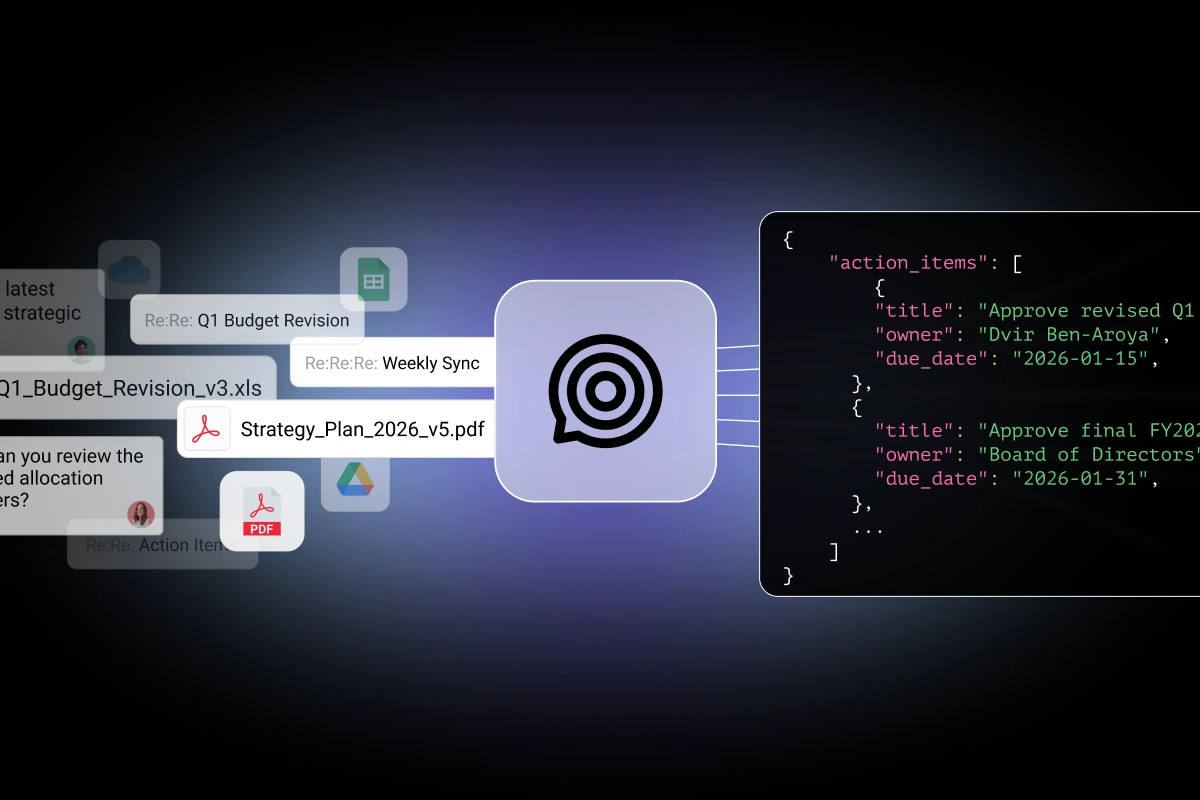
And Claude just answers. With real numbers. From your real conversations and files. With links back to the source so you can click through and verify.
You ask. Claude answers. That’s the whole loop.
Why it works (and why it’s faster and cheaper)
Three things matter if you’re paying for Claude and using it seriously for work.
Better answers. Claude is reasoning over your actual conversations and files, not over whatever you happened to remember to paste. Decisions don’t get missed. Old proposals don’t get treated as current. Buried details surface because the system already knows about them.
Faster. The work has been read and organized in advance. When you ask, Claude isn’t scrambling to figure out the context. It already has it. Answers come back in seconds.
Fewer tokens. This matters if you’re on a paid plan and watching usage. Pasting a 30-email thread plus a couple of attachments plus a context paragraph eats through tokens fast. The new way sends Claude only the small slice it needs to answer your specific question. Same quality of answer, a fraction of the tokens burned on context-loading.
The short version: Claude gets a focused, indexed view of your work instead of a fire hose of pasted text.
How it’s organized: a specialist agent for the kind of work you do
What you install isn’t just “a skill.” It’s a set of specialist agents, each one tuned to a specific kind of work. You install the ones that match what you do, and ignore the rest.
There are agents for sales, customer success, finance, marketing, recruiting, procurement, IT, projects, real estate, consulting, research, executive work, and more. Each one is built around the actual rhythm of that role.
A few examples:
A sales agent that handles “what’s still open in my deals?”, “who am I supposed to follow up with?”, “brief me before this call.”
A consulting agent for “what’s going on with my clients?”, “where am I behind?”, “what’s slipping?”
A marketing agent that takes “what’s the state of marketing this week?”, “how is our brand being perceived?”, “what needs attention before the review?”
An executive agent for “brief me on this meeting,” “what’s outstanding across my direct reports?”, “what decisions are pending?”
You don’t have to memorize anything. You ask in your own words. The agent figures out the right combination of things to look at and gives you the answer.
If your role isn’t on the short list above, it’s almost certainly covered. The set is broad and getting broader.
How to install (about five minutes)
Two steps. Neither requires writing code.
Step 1: Connect iGPT to Claude
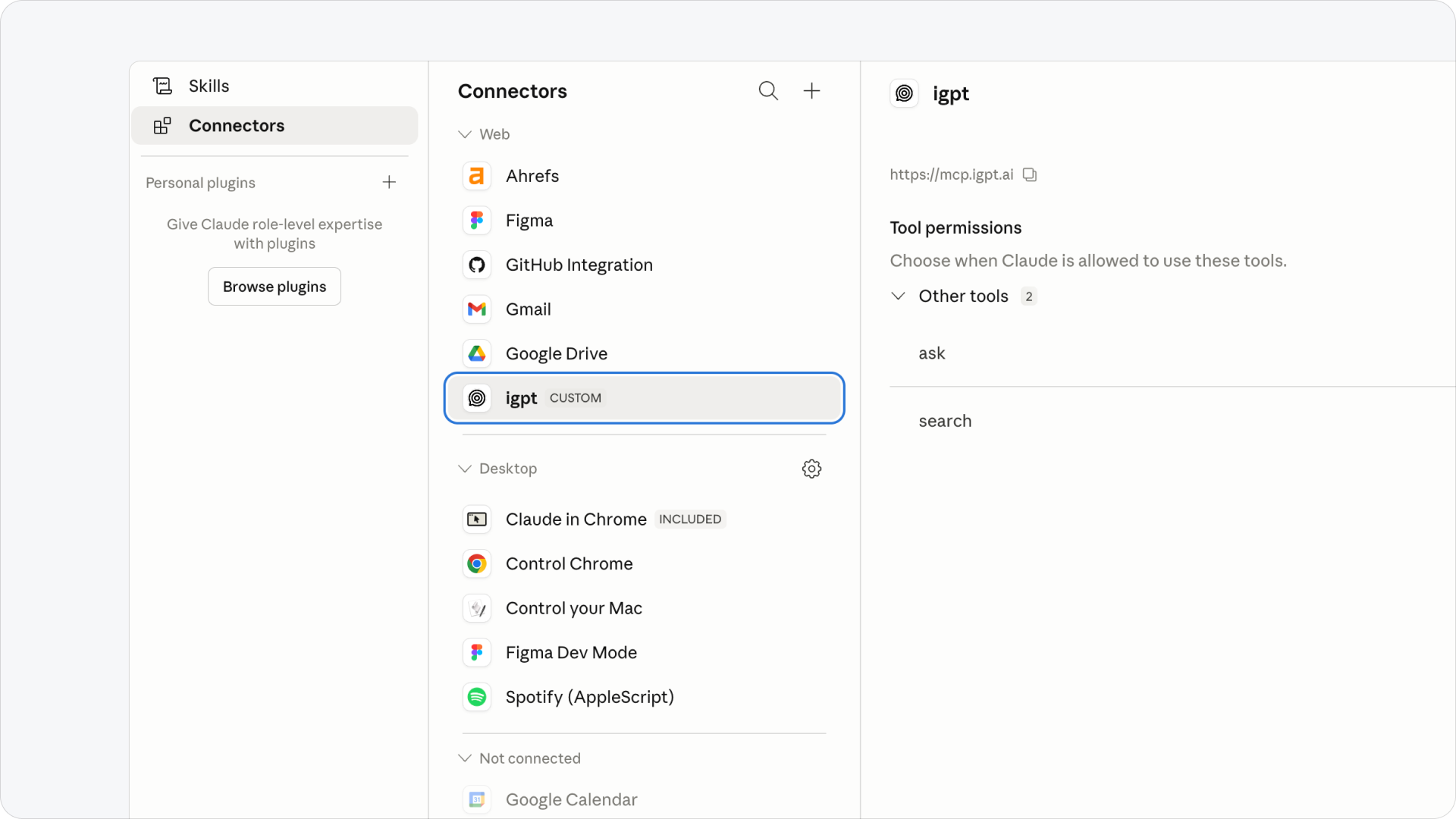
This is what gives Claude access to your email and Drive.
Open Claude Desktop, click your name in the bottom left, choose Settings → Connectors.
Scroll to the bottom and click Add custom connector.
In the URL field, paste:
https://mcp.igpt.ai
Save the connector. You’ll see a new entry called igpt in your connector list.
Click Connect on that entry.
Clicking Connect will open https://igpt.ai/hub/playground/ in your browser. Sign in there and follow the prompts to authorize Gmail and Google Drive. Read access only. Nothing gets sent or modified.
iGPT will start indexing your email and Drive in the background. For most accounts this finishes in a few minutes. You can move on to step 2 while it’s working.
Heads up: Some Claude users (especially on smaller plans or older versions) need to add the connector manually rather than through the in-app UI. If “Add custom connector” isn’t visible, your plan or version may not yet support custom connectors directly, check Claude’s connector docs for the workaround.
Step 2: Install the plugin for the work you do
This is what gives Claude the specialist agents.
In Claude, go to Customize → Plugins.
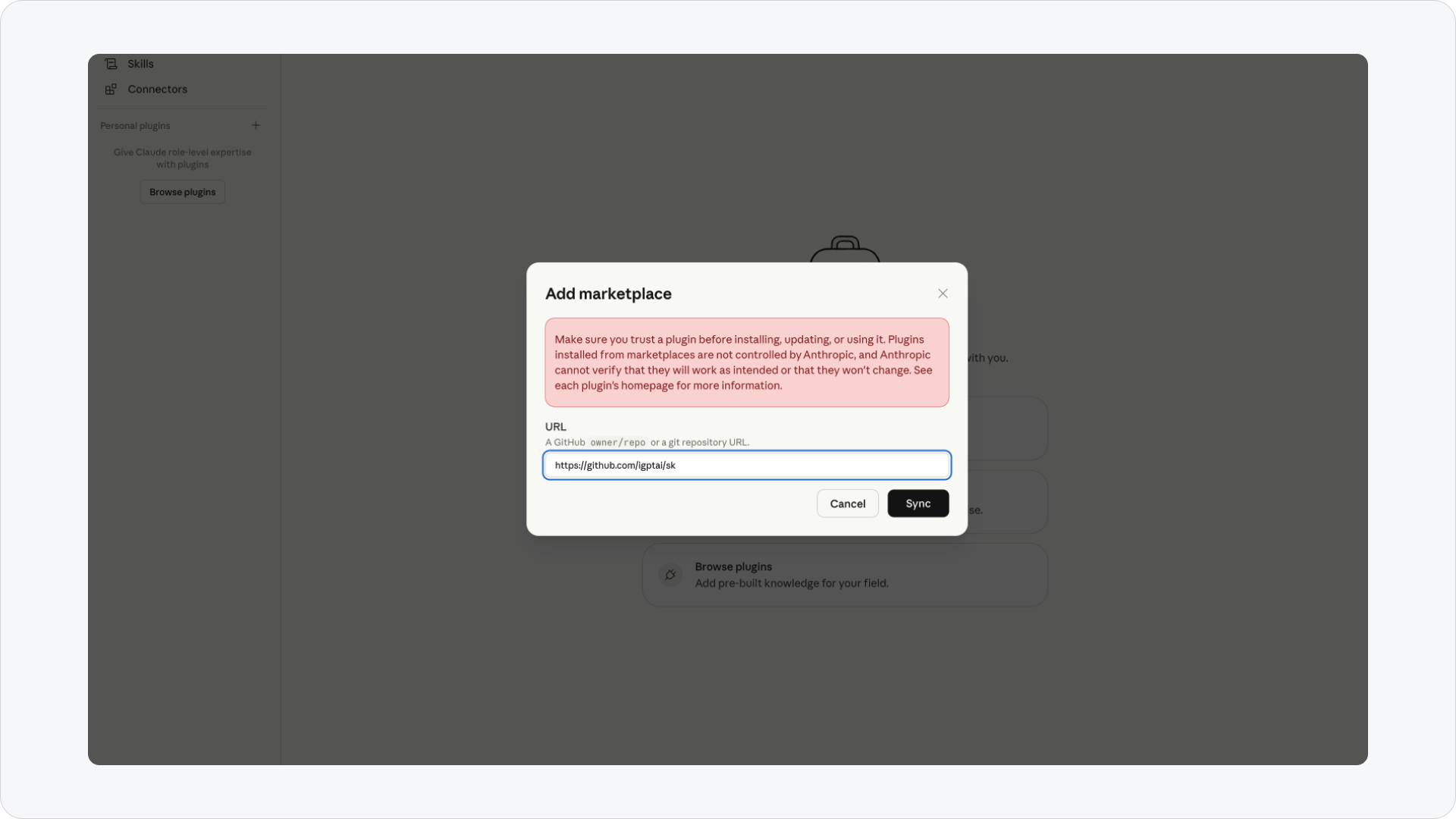
Click Browse plugins, then switch to the Personal tab.
Click the + button to Add marketplace.
In the URL field, paste:
https://github.com/igptai/skills
Click Sync.
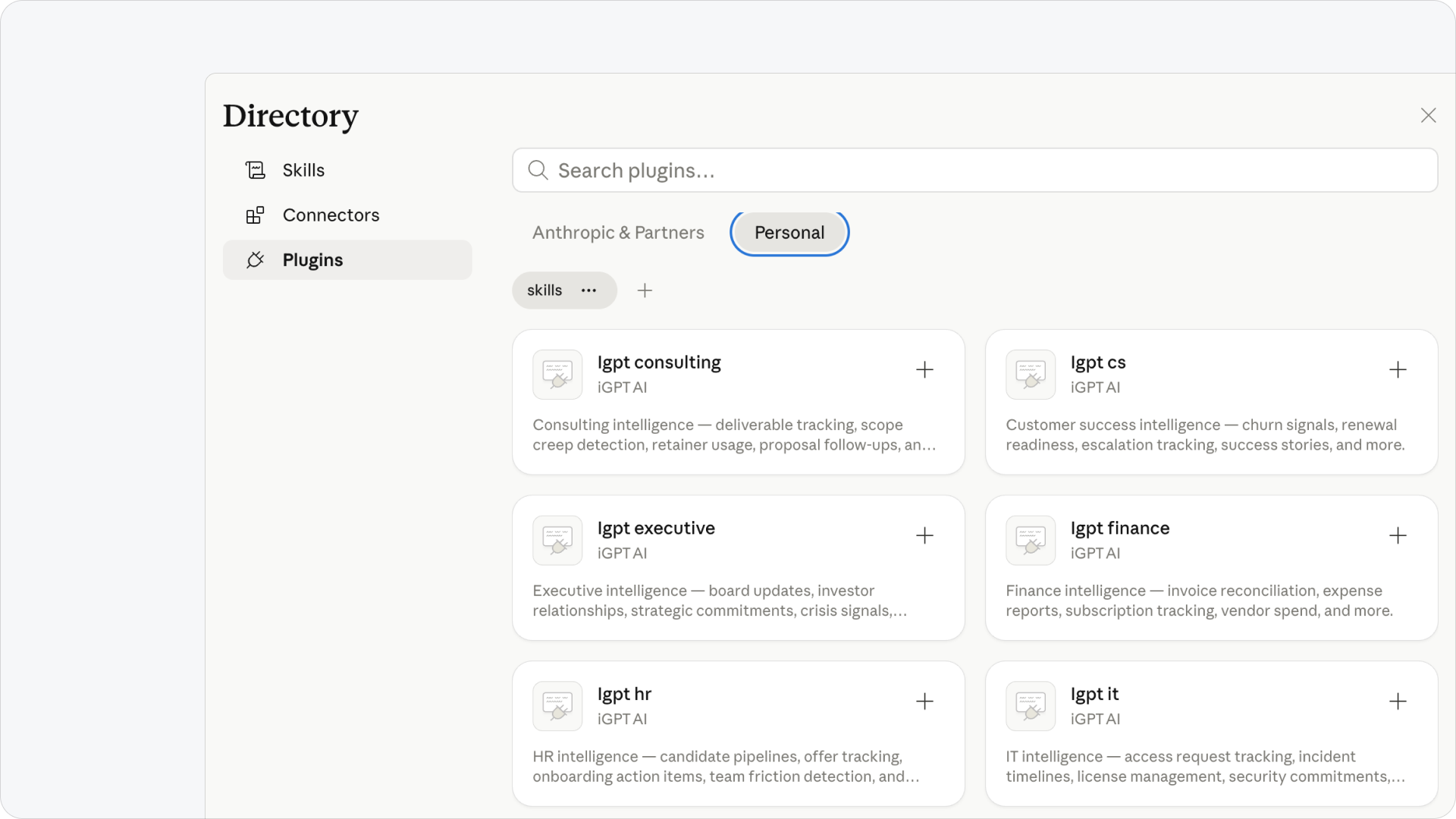
This adds the iGPT plugin marketplace to your Personal tab. You’ll see all the available plugins (sales, consulting, marketing, finance, executive, and the rest). They aren’t installed yet, but they’re listed.
Click Install on each plugin you want. Most people only need one or two. A salesperson installs igpt sales. A consultant installs igpt consulting. An executive installs igpt executive and maybe one or two others.
You’ll see a confirmation for each: “igpt sales is installed and ready to use.”
That’s it. Claude now has the agents.
Want only one specific plugin instead of the full marketplace? You can paste a single plugin’s URL instead of the root, e.g. https://github.com/igptai/skills/tree/main/plugins/igpt-consulting. Most people just paste the root and pick what they want from there.
What it looks like in practice
You ask: “Build me a dashboard for Q1 projections based on what we’ve discussed.”
Claude pulls together what’s been agreed across your email and Drive, and comes back with a dashboard view. Numbers. Where they came from. Who said what. Sources linked.
You didn’t paste anything. You didn’t summarize anything. You didn’t have to remember which thread held the latest figure.
You ask. Claude answers from real data. You verify by clicking source links if you want.
That’s the difference between using Claude as a chatbot you brief, and using Claude as an assistant that already knows what’s going on.
If you use ChatGPT, Gemini, or another AI
The plugins above are built in Anthropic’s Skills format, which is supported by Claude, Claude Code, Cursor, Cline, Windsurf, and a growing list of agents that read the standard.
If you use a different AI as your daily driver, two options today:
Use the iGPT Hub directly. Connect Gmail and Drive at https://igpt.ai/hub/playground/ and ask your questions there. Same indexed data, same answers, just inside iGPT’s chat instead of yours.
Use the iGPT MCP from any tool that supports it. If your tool of choice (e.g. Cursor, Cline, Windsurf) reads MCP connectors, point it at https://mcp.igpt.ai. ChatGPT and Gemini don’t read MCP today, so they can’t connect this way yet.
If real ChatGPT or Gemini support is on your radar, the GitHub repo at github.com/igptai/skills is the place to follow. Updates ship there.
Why this stays useful
A lot of Claude tricks work once and then fade. You discover the magic prompt, get a great answer, and never use it again.
This isn’t a trick. It’s a permanent change to what Claude can access. Every Monday standup, every pre-meeting briefing, every end-of-week review, every quarterly check-in, the same setup keeps paying off, because your email and Drive keep being where the real work happens.
The longer you use Claude this way, the more it feels like Claude has been working alongside you, because it has access to the same things you do and a clear idea of what to do with that access.
Get set up
Add the iGPT connector at Settings → Connectors → Add custom connector, paste https://mcp.igpt.ai, hit Connect, authorize Gmail and Drive at https://igpt.ai/hub/playground/.
Add the plugin marketplace at Customize → Plugins → Browse → Personal → Add marketplace, paste https://github.com/igptai/skills, install the plugins for your role.
Ask Claude something you’d normally have to research yourself.
Repo: https://github.com/igptai/skills
Hub: https://igpt.ai/hub/playground/